Keeps 2.0 is available for iPhone, iPad, and Mac. Images are app previews and widget design previews with sample data. If you are still using the earlier 1.3.1 interface, use the 1.3.1 getting-started guide.
Add your first tag.
Open Collection and choose +. Add a name, the price and currency, and the purchase date. Choose Thing, App, or Subscription. A photo makes it easy to recognize; a warranty, a goal, and notes can wait.
Or explore the demo collection first. Its sample items stay separate from your personal collection.
Read the price, not just the receipt.
The tag follows the metric you choose in Collection. Cost per day works from the purchase date without any use logging. For recorded items, the collection's cost-per-use headline appears from the third use.
- Cost per use: ownership cost divided by recorded uses, or by estimated uses when you choose a frequency.
- Cost per day: ownership cost divided by days owned, including purchase day. Selling or retiring an item ends its ownership period.
- Sold items: sale proceeds reduce ownership cost. If proceeds exceed the purchase cost, cost per use is zero.
- Currency: original purchase amounts stay intact. Reference conversions are estimates and may differ from card charges or fees.
A camera bought for USD 1,299 and used 42 times costs USD 30.93 a use. One more use brings it to USD 30.21. The earlier amount is crossed out, so you can see the markdown.
Every use leaves its mark.
Open an item and choose Log a use. Use Log a past use for another day. Open Calendar to see the days you used things, or an item’s Uses page to inspect an entry, change its date, or fill in past uses between two dates.
Choose Recorded when each logged use should count. Choose Estimated to use a frequency such as daily or several times a week. Estimated cost falls with time; logged entries remain a diary rather than adding a second count.
A goal you can punch your way toward.
Set a per-use goal in the item editor. The item’s punch card shows the month, punched on the days you used it, with the uses still to go to the goal; Log a use punches today. When the goal is met, the tag is stamped Goal met.
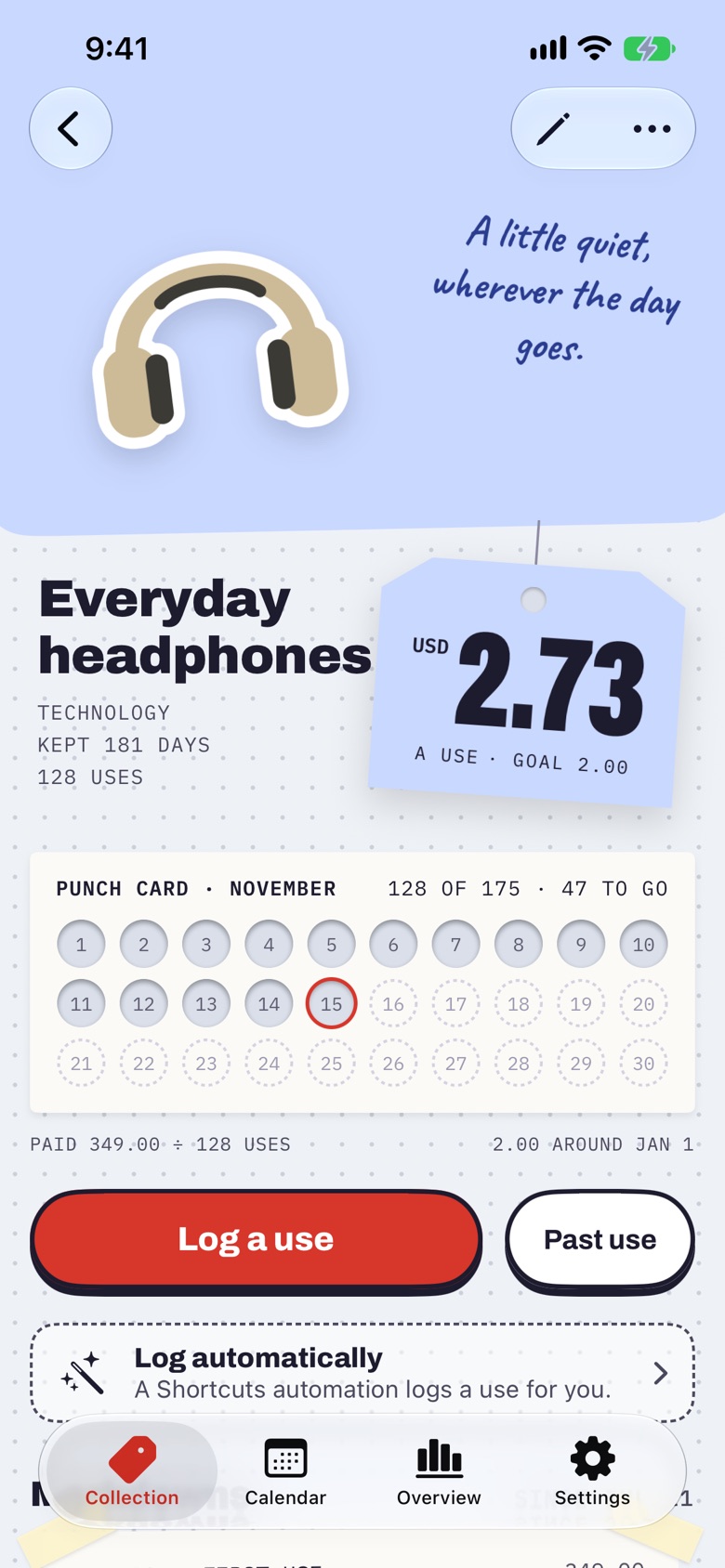
Days without a record don't mean the item wasn't used. Markdowns show milestones, and your recorded calendar tells the part of the story you chose to keep.
Shortcuts · Available in the current app
Let the connection log the use.
Some things announce when you use them. Your phone connects to your car, your headphones pair, or CarPlay starts. A Shortcuts automation can turn that moment into a recorded use in Keeps.
Chen’s example · Model Y
“When my iPhone connects to my Model Y’s Bluetooth, log a use of my car.”
- ConnectYour car’s Bluetooth
- LogA use of your car in Keeps
- See the valueRecorded uses update cost per use
1. Make a shortcut for your car.
- Add your car to your personal collection in Keeps, then open Keeps on the iPhone that will run the automation.
- In Apple’s Shortcuts app, create a shortcut and search for Log a use in Keeps.
- Add that action. Tap Item and select your own car from Keeps.
- Expand the action’s options. Turn on Only once a day if you want to count days you drive. Name the shortcut something like Log my car use.
The shared shortcut is named “Log Use For My Car” and points to Chen’s Model Y. After adding it, edit the selected Item to choose your own car and set Only once a day as above. Adding the shortcut does not create your Bluetooth or CarPlay trigger.
2. Choose what starts it.
On iOS 18–26, open Shortcuts → Automation → +, then choose the trigger that fits your car:
Bluetooth
Choose Bluetooth, select your car’s paired device, and choose the connection option if shown. Select that specific car, rather than Any Device.
This is the route used in the Model Y example.
CarPlay
Choose CarPlay → Connects for a car that supports CarPlay.
This trigger responds to a CarPlay connection. If you use several CarPlay cars, use a specific Bluetooth device when you need to distinguish them.
Choose Run Immediately where offered. If your version instead shows Ask Before Running, turn it off and confirm. Choose your saved car shortcut, or add Run Shortcut and select it. Save the automation.
Using the newer iOS 27 Shortcuts layout?
Open the car shortcut, choose Edit → Automation, and add the Bluetooth or CarPlay trigger there. In Edit → Info → Privacy, enable Allow Running When Locked for unattended use. The trigger belongs to the shortcut in this layout. See Apple’s current automation instructions.
3. Test it, then let it work.
Run the shortcut once manually and check the car’s use history in Keeps. Then check that the next connection triggers the same action. A manual test records a real use; remove that entry if it was only a test.
If the item is unavailable, open Keeps on this iPhone and select the item again in the shortcut. If the automation asks for confirmation or an unlock, review its run settings and any action permissions in Shortcuts.
The same idea works for Bluetooth headphones. For items without a connection, use an NFC tag or another trigger that matches your routine. Keeps’ Log automatically guide offers more examples.
Apple’s setup references: Bluetooth triggers, CarPlay triggers, and automatic running on iOS 26. Labels vary with your iOS version.
One object. Your accent.
In Settings → Theme, choose Keeps, Forest, Harbor, Clay, Plum, Graphite, or Midnight. A theme sets the accent for stamps, buttons, and links on the same dotted paper, in light and dark, with a matching app icon. Photos, tags, and stickers keep their own colors.
Choose the item backgrounds.
- Same for all: every item stands on paper. A clean subject becomes a cutout; otherwise the photo becomes a print.
- Suited to each: light objects get a dark backdrop, and photos without a clean cutout fill the stage.
In Edit photo → Stage, choose Cutout, Print, or Fill and a backdrop for that item. Cutout is unavailable when the subject cannot be lifted cleanly. Crop keeps the framing tools, including rotation, flip, straighten, and aspect ratio. The original photo stays available.
No photo yet? Keeps uses illustrated sticker artwork. Categories carry their chosen artwork through the collection, search, and sidebars.
A little perspective on your purchases.
Overview leads with what your collection costs a day and where that cost goes. It brings together a briefing, the closest goal, upcoming renewals and warranties, the things with the lowest cost per use, and spending by month.
On iPad and Mac, the wider layout gives those details room beside each other. Collection can keep an item's details open alongside your tags.
Apps and subscriptions belong here too.
A one-time app purchase can track uses like a physical item. A subscription shows its price per billing period, renewal date, and amount paid so far. Renewals add to its cost; subscriptions are assessed by recurring cost rather than a punch-card use goal.
Apple-imported items can link to their App Store page or subscription management. Changing a record in Keeps does not cancel a subscription with its provider.
Import Apple purchase history, Amazon orders, receipts, or CSV files with Keeps Pro. Review and edit the details before adding them.
Keep a tag within reach.
Choose a supported Keeps widget in your device's widget gallery:
- Overview: collection cost per day and its breakdown.
- Item details: a belonging you pick.
- Item suggestion: Automatic, Least Used, Best Value, or Most Expensive.
- Calendar: the days you used things.
- Record use: log a use from your Home Screen.
In 2.0 the widgets are drawn on dotted paper, as receipts and price tags, in light, dark, and tinted. Available sizes and controls depend on your device and OS; item widgets use the item's photo presentation.
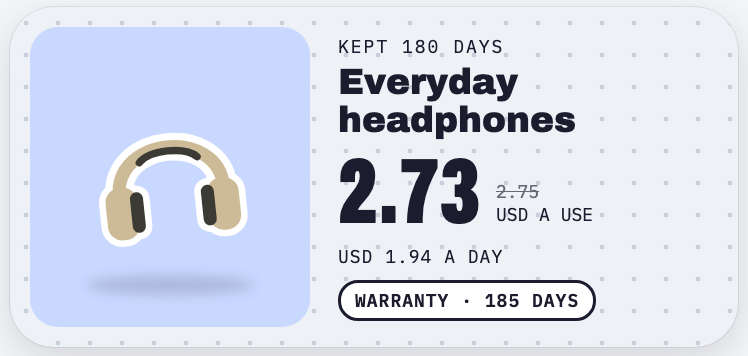
Shortcuts can also record uses. The item's Log automatically guide helps you set up a supported automation in Apple's Shortcuts app.
Keep the history when things move on.
Use Mark as retired to end ownership while keeping the record. Use Mark as sold to record what you got back. Search includes retired and sold items.
Delete item removes the item and its recorded uses permanently. Retire it instead when you want its history to stay.
Your collection stays yours.
Enable optional iCloud sync for devices using the same iCloud account. Demo data does not sync. Open Settings → Backup & restore to save or share a Keeps Backup file with photos and use history; older JSON backups still open. Read the review and confirmation before restoring or importing one.
Keeps is free to download, with room for up to 30 items. Keeps Pro offers unlimited items and Apple, Amazon, receipt, and CSV imports for USD $1.99 per month, $9.99 per year, or $19.99 as a one-time purchase. Use logging, goals, widgets, Shortcuts, iCloud sync, backups, and export remain in Free. Earlier paid-app buyers receive Pro.
Existing items are kept if a restored or synced collection exceeds the free allowance; the limit applies to adding items. A product-page import counts toward that allowance.
Keeps Pro is optional. Monthly and yearly subscriptions renew automatically unless canceled; the one-time purchase does not renew. These prices are for the US; prices vary by region, and the App Store shows your local price. See Free and Pro and privacy details.
Stickers in Messages.
Open Keeps in Messages to send illustrated everyday-object stickers.